Widgets for macOS
Your Mac’s load —
right on the desktop.
CPU, memory, GPU, network and disk in widgets you can’t tell from the built-in ones. And a menu bar badge that turns red when your Mac is maxed out and keeps it awake when you need it.
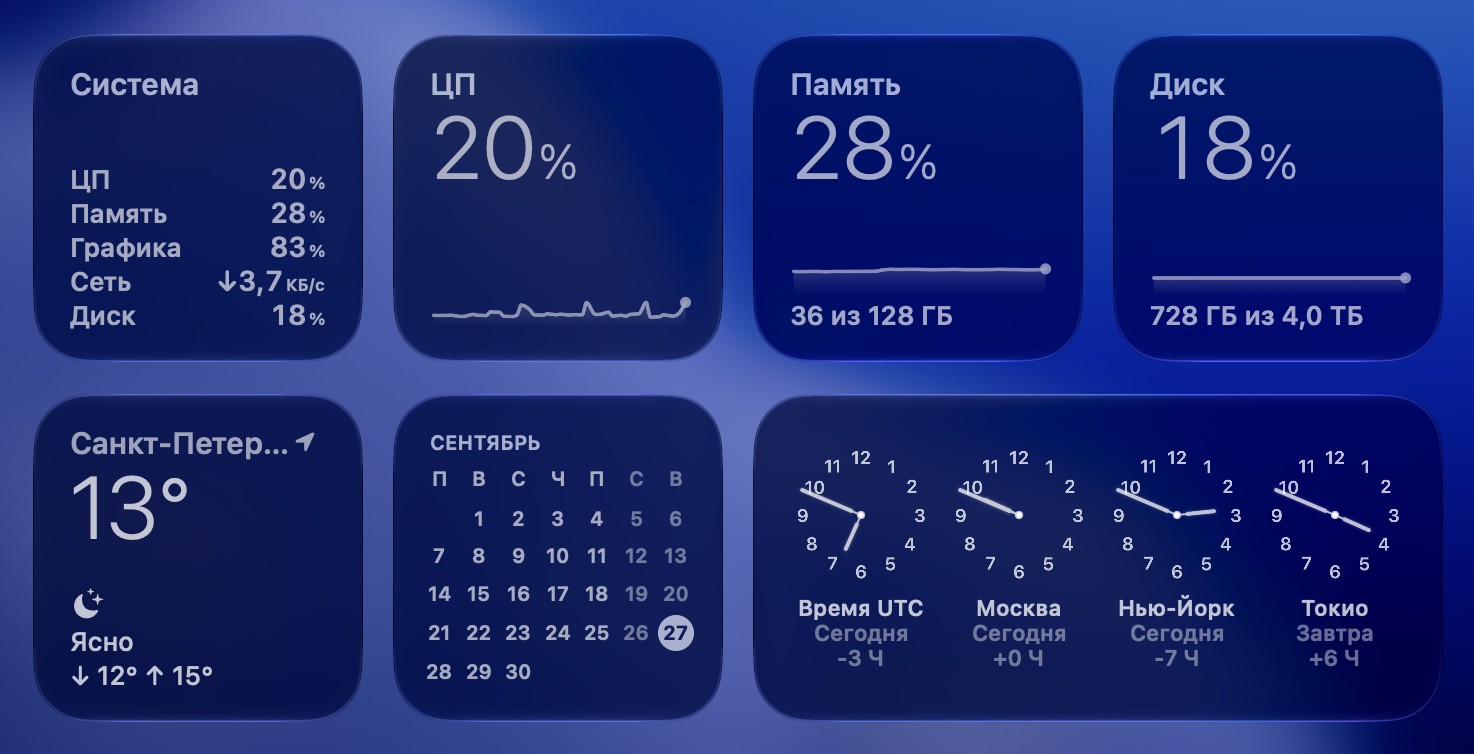
One of the family.
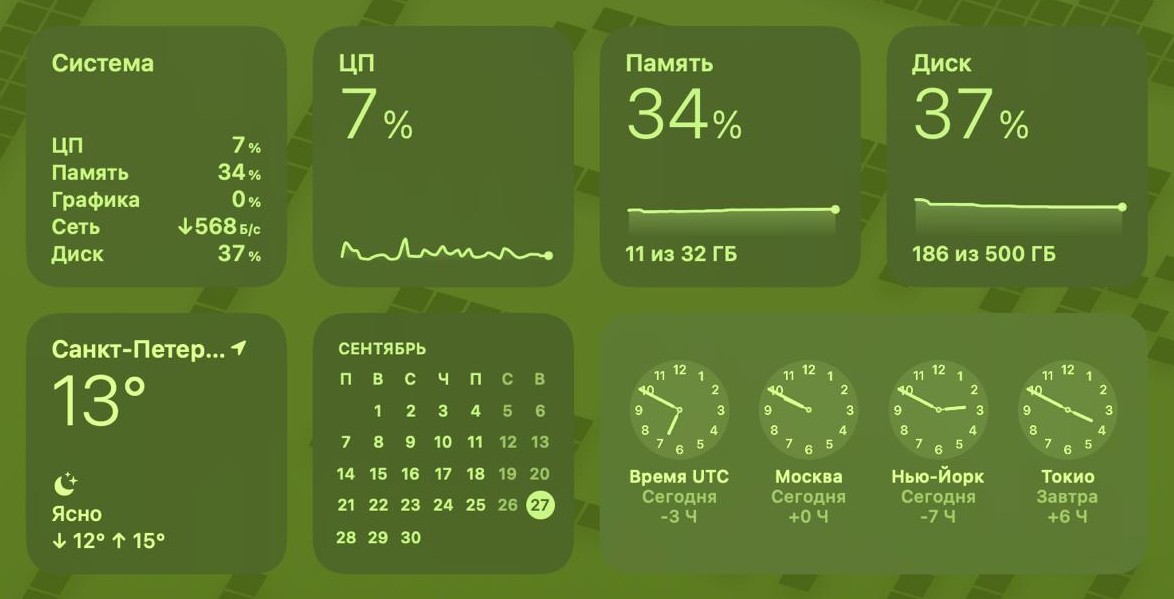
Fonts, spacing and the glass look are matched pixel by pixel to the built-in Weather widget. Next to the system widgets they look right at home.
System
CPU, memory, GPU, network and disk in one list.
CPU, Memory, Disk
A big percentage, a last-hour graph and “how much of how much”.
Battery
A charge ring and the time to full or to empty.
Resources and Network
Four load rings, or download and upload speed with a graph.
Last Hour
Every metric in a list, each with its own graph, like in Stocks.
Same numbers
One measurement for all widgets — neighbors never disagree.
One glance up.
A badge styled like the keyboard layout indicator shows whatever is busiest — CPU, memory or GPU — as an icon and a percentage. Above 80% it turns red.


Stay awake while you need it.
The badge menu can keep your Mac from sleeping. While it’s on, a lock shows in the badge.
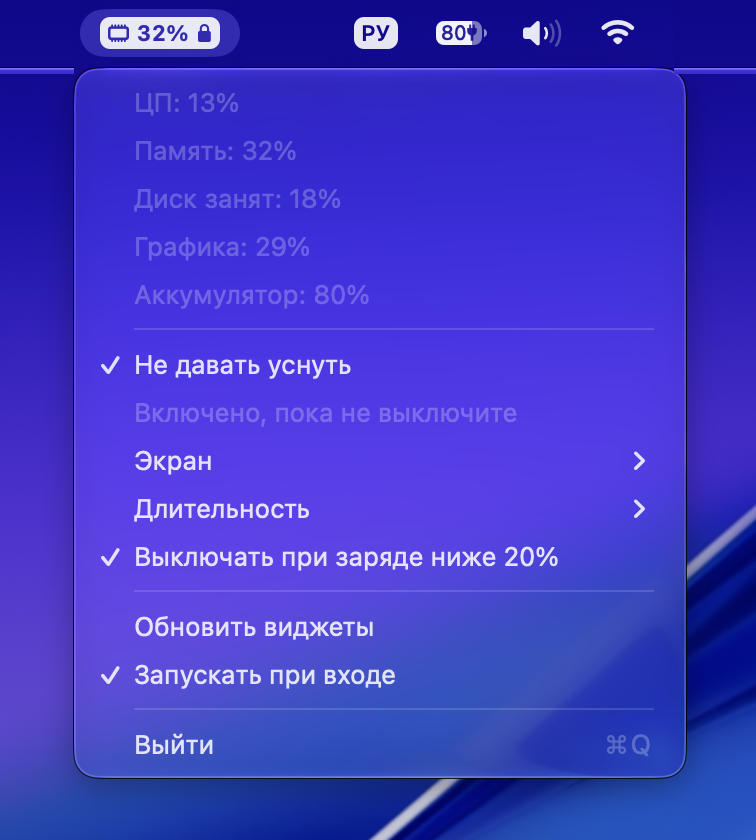

- Display — off or onFor downloads and builds the display can turn off; for presentations it stays on.
- From 15 minutes to “until I turn it off”When time’s up, your Mac sleeps as usual again, no reminders.
- Saves your batteryOn battery below 20% it lets go by itself, so a drained Mac won’t lose your work.
All in one gallery.
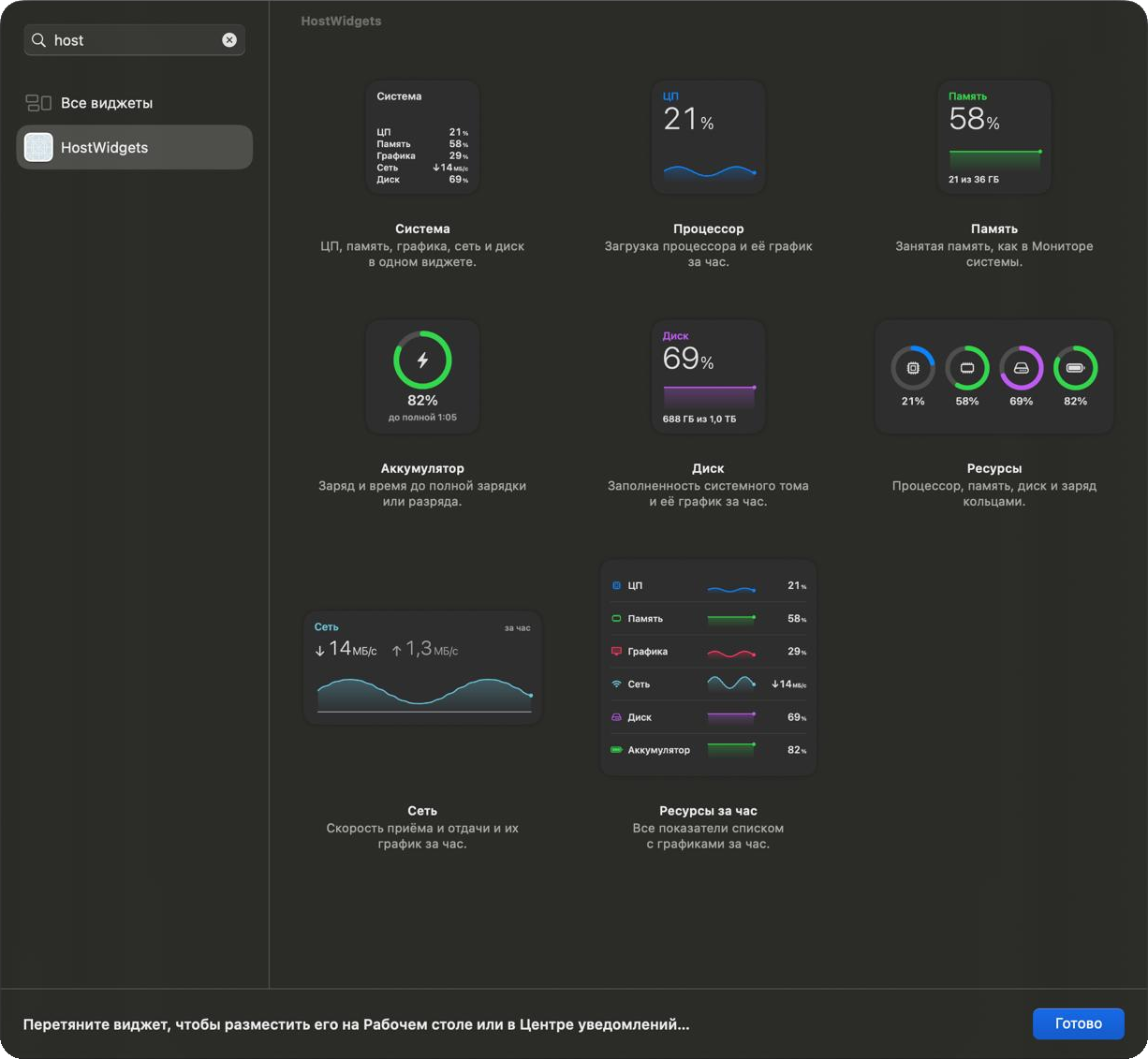
- Eight widgetsSmall, medium and large — put any of them next to the built-in ones.
- Updates every minuteAs often as macOS allows; the menu bar badge updates every 2 seconds.
- Honest networkThe average speed over a minute, not a random zero in a quiet second.
- Starts on its ownAfter a restart the badge is back; you can turn this off in its menu.
- Tells you about new versionsA notification and a menu item — whether to update is up to you.
Installs in a minute.
The app isn’t from the App Store, so on first launch macOS asks you to confirm you trust it. You only do this once.
Open the disk image and drag HostWidgets to Applications
The Applications shortcut is in the same window.
Open HostWidgets
macOS will say it can’t verify the developer — click Done.
Allow it to open
System Settings → Privacy & Security → Open Anyway at the bottom, then confirm with your password. Or with one command in Terminal: xattr -dr com.apple.quarantine /Applications/HostWidgets.app
Add the widgets
Right-click the desktop → Edit Widgets → the Mac Resources section. Drag the ones you like onto the desktop.
To remove: Quit from the badge menu, take the widgets off the desktop and delete HostWidgets from Applications.
Mac Resources is free. If it helps you — thank the author.